
两千年前的灵光:欧几里得如何证明素数有无穷多个
在我心中,数学的优雅,不在于它有多么高深莫测,而在于用最简洁明了的逻辑,去揭示一个深刻到令人惊叹的真理。今天,我们就来谈一个这样的例子。它来自2300多年前,一个叫欧几里得的人,在他那本不朽的《几何原本》中,为我们展示了一个堪称完美的证明——素数有无穷多个。 首先,我们要明白,欧几里得面对的不是一道算术题,而是一个关于“无穷”这个概念的哲学命题。怎么证明一种东西有无穷多个?你无法一个个去数,因为生命有限,宇宙也有限。但欧几里得的思考方式,是用有限去触碰无限,用逻辑去构建一个必然的结论。这种方法,正是科学精神的源头。 他的证明过程,简单到你可以用几句话讲给一个聪明的中学生听。但它背后的智慧,却足以让任何一个成年人沉思良久。 让我们开始这个思维之旅。 先假设,素数只有有限个,比如N个。我们把它们列出来:2,3,5,7,11……一直到最后一个,最大的素数,我们叫它P。 现在,欧几里得让我们做一件事:把这些所有已知的素数乘起来,然后再加上1,构造出一个新的数。我们把它记作Q,即: Q = (2 × 3 × 5 × 7 × 11 × … × P) + 1 好了,我们手上有了这个数Q。接下来...
Java 26 新特性:JEP 500 限制反射修改 final 字段——让 final 真正不可变
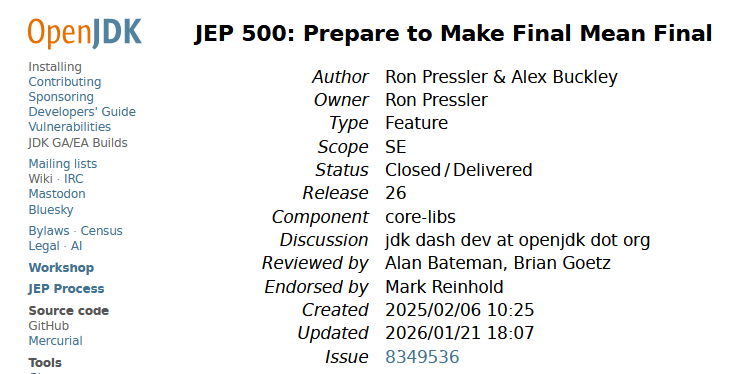
JEP 500 是 JDK 26 中已正式交付的一项特性,它为 Java 生态做了一项关键准备:在未来的 JDK 版本中,通过深度反射(Deep Reflection)修改 final 字段的行为将默认被禁止。当前,你可以在 JDK 26 中看到相应的警告信息,并有充分的时间来识别和调整那些依赖此“灰色通道”的代码。 一、基本信息卡片 项目 内容 JEP 编号 500 标题 Prepare to Make Final Mean Final(为“让 final 回归本义”做准备) 负责人 Ron Pressler 所属版本 JDK 26 状态 Closed / Delivered(已关闭 / 已交付) 类型 Feature 范围 SE(Standard Edition) 组件 core-libs 创建时间 2025/02/06 更新时间 2026/01/21 二、背景与动机2.1 final 的本义与现实的割裂在 Java 语言中,final 关键字的设计初衷是表示不可变性。一旦 final 实例字段在构造函数中被赋值,...
Java 26前瞻:JEP 517终落地,原生HTTP Client API完美支持HTTP/3
JEP 517 为 Java 标准库中的 HTTP Client API(自 JDK 11 引入)增加了对 HTTP/3 协议的支持,使 Java 应用能够以最小的代码改动与 HTTP/3 服务器交互,从而获得更快握手、避免队头阻塞、更可靠传输等一系列协议层面的性能收益。该特性已于 JDK 26 正式交付。 基本信息卡片 项目 内容 JEP 编号 517 标题 HTTP/3 for the HTTP Client API 负责人 Daniel Fuchs 所属版本 JDK 26 状态 Closed / Delivered 组件 core-libs / java.net 关联 JEP JEP 321(HTTP Client API) Issue JDK-8291976 背景与动机HTTP Client API 的前世今生JDK 11 通过 JEP 321 引入了一套现代化的 HTTP Client API,用于取代老旧的 java.net.HttpURLConnection。这套 API 设计之初就支持 HTTP/1.1 和 HTT...
Java 26 新特性:G1 GC 吞吐量优化(JEP 522)
JEP 522 的核心改进在于写屏障(Write Barrier) 的精简与卡表(Card Table) 机制的优化。如果你对 G1 的并发标记和记忆集(RSet)管理已经有一定了解,那么理解下面这些改动会更加顺畅: 维度 改进前 改进后 写屏障 复杂的同步逻辑,包含“优化卡表”相关指令 简化为类 Parallel GC 风格,仅标记卡表“脏” 同步方式 应用线程与 GC 优化线程持续协调 引入双卡表,双方各自操作,互不干扰 性能影响 同步开销降低吞吐量,增加延迟 吞吐量提升,GC 暂停时间更可控 接下来,我将从 JEP 的基本信息开始,带你逐步解析这次优化的背景、动机以及它如何从根本上改变 G1 的工作方式。 基本信息卡片 项目 内容 JEP 编号 522 标题 G1 GC:通过减少同步来提升吞吐量 所属版本 JDK 26 状态 Closed / Delivered 类型 Feature 组件 hotspot / gc 负责人 Ivan Walulya 创建时间 2024/09/24 关联 Iss...
DataWorks 绑定全托管 Flink 计算资源:新手图文教程
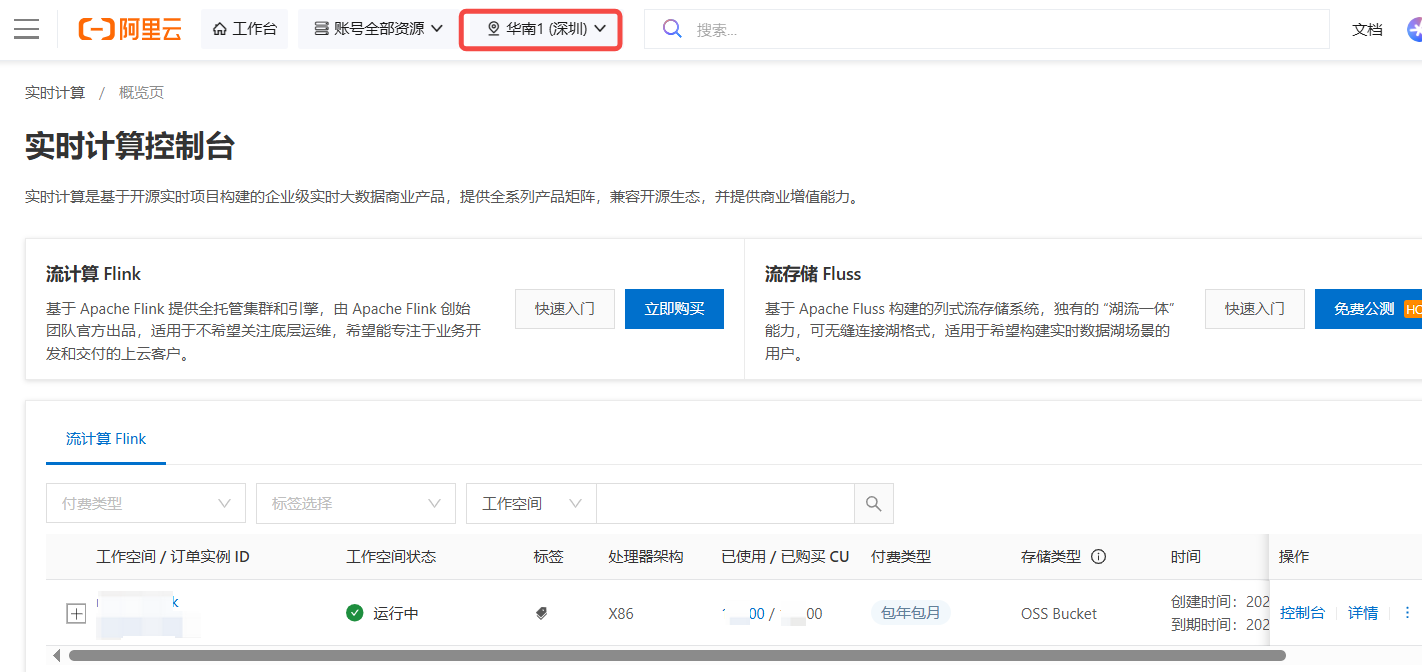
如果你希望在 DataWorks 里直接开发、运行 Flink 任务(比如实时流计算或批量计算),就需要先把 DataWorks 和你的“全托管 Flink”计算资源绑定在一起。本文会带你一步步完成这个绑定操作。 假设你已开通实时计算Flink版集群和大数据开发治理平台 DataWorks,并且 DataWorks 已创建工作空间,操作者使用的RAM账号已加入工作空间并设置为工作空间管理员角色。 一、绑定之前,请先确认 4 个条件在开始操作前,请对照下面的清单,确保你的环境满足要求。缺任何一项都可能导致绑定失败。 条件 1:地域必须相同,Flink 集群 和 DataWorks 工作空间 必须在同一个地域(比如都在“华南1(深圳)”)。 查看 Flink 集群地域的位置(实时计算控制台页): 查看 DataWorks 工作空间地域的位置(DataWorks 控制台 - 概览页)https://dataworks.console.aliyun.com/overview: 条件 2:你的账号要有足够权限,你需要同时拥有以下两个权限: DataWorks 里的 空间管理员...
Java 26 / JEP 504:Applet API 正式退出 Java 历史舞台
一句话总结:JEP 504 将彻底移除 Applet API,这项曾经推动 Java 风靡全球的技术,将在 JDK 26 中正式告别 Java 平台。 一、基本信息卡片 项目 内容 JEP 编号 504 标题 Remove the Applet API 类型 Feature(功能变更) 作用域 SE(标准版) 状态 Closed / Delivered(已关闭/已交付) 所属版本 JDK 26 组件 client-libs / java.awt 负责人 Philip Race 创建时间 2024 年 12 月 4 日 关联 JEP JEP 289(JDK 9 弃用 Applet API)、JEP 398(JDK 17 标记为待移除)、JEP 486(JDK 24 永久禁用安全管理器) 二、背景与动机2.1 Applet 的前世今生1990 年代,Java Applet 是网页交互的一颗明星。它允许开发者在网页中嵌入 Java 程序,为当时以静态 HTML 为主的网页带来了动画、游戏和复杂的交互能力。可以说,Applet 是...
Java 11 新特性详解:像运行 Python 一样运行 Java(JEP 330)
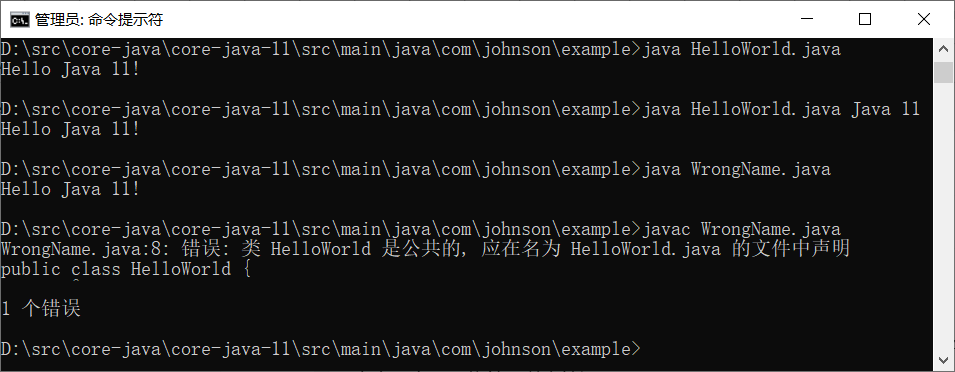
引言:从两步到一步在 Java 11 之前,运行任何一个 Java 程序——哪怕是最简单的 “Hello World”——都必须经历一个固定的两步流程: 12$ javac HelloWorld.java # 第一步:编译生成 HelloWorld.class$ java HelloWorld # 第二步:运行编译后的字节码 这种流程对于大型项目而言是严谨且必要的,但对于初学者练手、快速验证代码片段或编写小型工具脚本来说,却显得有些繁琐,且每次修改后都必须重新编译,否则运行的仍是旧版本的字节码。 从 Java 11 开始,这一流程得到了极大的简化。现在,你可以跳过显式的 javac 编译步骤,直接使用 java 命令运行源代码文件。 功能初探:一行命令搞定一切使用方法新用法非常简单。假设你有一个 HelloWorld.java 文件,内容如下: 12345public class HelloWorld { public static void main(String[] args) { System.out.printl...
Java 11 Files 类新方法:readString 与 writeString 详解
自 Java 7 引入 java.nio.file.Files 以来,文件读写操作已大幅简化。但直到 Java 10,将整个文件内容读取为单个 String 或直接将 String 写入文件仍然需要多步转换或借助辅助工具(例如 new String(Files.readAllBytes(path), charset))。Java 11 在 Files 类中直接增加了 readString 和 writeString 方法,使这类最常用的文本文件操作变得优雅且直观。本文将详细讲解这两个方法的用法、最佳实践及注意事项。 1. 方法签名与基本概念1.1 readString12public static String readString(Path path) throws IOExceptionpublic static String readString(Path path, Charset cs) throws IOException 作用:读取指定路径文件中的所有字符,并将其返回为一个 String。 参数: path – 文件路径。 cs – 可选,字符集。若不提供,默认使...
Java 11 新增的 HTTP Client API(JEP 321)
一、概述Java 11引入了一个全新的标准HTTP客户端API,位于java.net.http包中,旨在取代自Java早期就存在的HttpURLConnection类。该API此前在Java 9中以孵化器模块形式出现,经过Java 10的迭代更新,最终在Java 11中正式标准化。新的HTTP客户端提供了一种更现代化、更易用的方式来处理HTTP通信,支持HTTP/2和WebSocket,并同时提供同步与异步两种编程模型。 与传统的HttpURLConnection相比,java.net.http.HttpClient具备以下显著优势: 特性 说明 无需第三方依赖 属于Java标准库的一部分,开箱即用 HTTP/2原生支持 支持多路复用、头部压缩等性能优化特性 异步非阻塞 基于CompletableFuture,可高效处理高并发场景 构建器模式 采用流式API,配置和构建过程简洁直观 内置WebSocket客户端 无需额外依赖即可实现WebSocket通信 在Java 11之前,开发者通常使用HttpURLConnection(功能过于底层)...
Windows 下的 i386 与 amd64 的架构区别
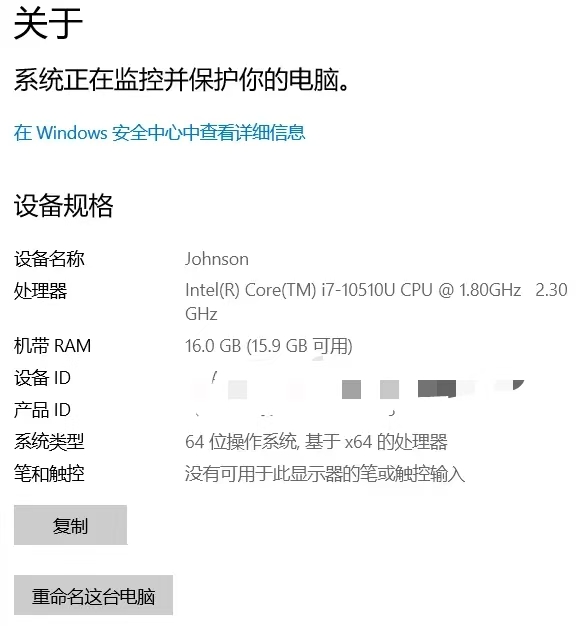
在 Windows 系统中下载软件、驱动或开发工具时,你时常会看到两个技术标识:i386 和 amd64。它们不仅出现在操作系统安装镜像中,也常见于各类应用程序的发布页面。表面上,这似乎是两个抽象的代号,实则承载着 x86 架构数十年的演进历史,也定义了不同硬件平台与操作系统之间的协作方式。理解这两个术语的含义,不仅能帮你搞清楚 Windows 运行环境的底层逻辑,更能让你在下载软件时做出正确的选择。 i386:32 位时代的奠基者i386 原本特指英特尔公司于 1985 年推出的 80386 处理器。这是 x86 家族中第一款 32 位处理器,相比前代 80286 实现了质的飞跃:32 位地址总线使其能够直接访问 4 GB 内存空间,而 32 位寄存器与指令集则为软件性能释放提供了坚实基础。 在 Windows 生态中,“i386”逐渐超越了具体芯片型号,演变为 32 位 x86 架构 的代名词。Windows XP、Windows 7 的 32 位版本,其安装光盘内的核心目录即命名为 I386。当人们说“Windows 的 i386 版本”时,实际指向的是: 处理器要求:兼...
JDK 与 JRE 的关系:你真的分清了吗?
在学习和使用 Java 的过程中,几乎每个人都会遇到两个名词:JDK 和 JRE。 它们看起来很像,但作用完全不同。很多人一开始会混淆,甚至有些经验丰富的开发者也会模糊地说“反正装上 JDK 就能跑 Java 程序了”。 那么,它们到底是什么关系?今天我们就来彻底讲清楚。 先给一个直观的结论JRE 是 Java 运行时环境,专门用来运行 Java 程序。 JDK 是 Java 开发工具包,它不仅包含 JRE,还包含了编译、调试、打包等开发工具。 换句话说: 如果你只想运行别人写好的 Java 程序,只需要装 JRE。 如果你想编写、编译、调试 Java 程序,就需要装 JDK。 JDK 包含 JRE。这是最核心的关系。 拆开来看:JRE 里有什么?JRE 的主要任务是让 Java 程序能跑起来。它包含: Java 虚拟机(JVM):真正执行 Java 字节码的地方,负责内存管理、垃圾回收、线程调度等。 核心类库:比如 java.lang、java.util、java.io 等,程序运行时必须依赖这些基础库。 支持文件:比如配置文件、资源文件、类加载器所需的库等。 ...
JDK 11 String 类新增方法详解与实用指南
引言Java Development Kit 11 作为长期支持版本,在 java.lang.String 类中引入了一系列旨在提升开发效率与代码健壮性的新方法。这些新增 API 针对日常开发中的常见痛点提供了标准化、语义清晰的解决方案。本文将对这些新增方法进行系统性的梳理与解读,并通过典型示例展示其相较于传统写法的优势。 一、空白字符判定:isBlank()方法签名 1public boolean isBlank() 功能描述 isBlank() 方法用于判断当前字符串是否为空或仅包含空白字符。其判定的空白字符范围遵循 Character.isWhitespace(int) 的定义,涵盖空格、制表符、换行符、全角空格等各类 Unicode 空白字符。 传统写法对比 在 JDK 8 及更早版本中,要准确判断字符串是否仅由空白构成,通常需要结合 trim() 与 isEmpty(),且需预先进行空引用检查: 1234// JDK 8 传统写法if (str == null || str.trim().isEmpty()) { // 处理空或空白逻辑} 此写...
理解 Java 11 的 Nest 访问控制(JEP 181)
引言:一个你可能从未注意过的“编译器秘密”如果你写过 Java 代码,一定对内部类访问外部类私有成员这样的写法不陌生: 123456789public class Outer { private int secret = 42; class Inner { void access() { System.out.println(secret); } }} 这段代码自然得像是呼吸一样。但你可能不知道,在 Java 11 之前,编译器为了让你能这样写,在背后做了不少“见不得光”的勾当——它偷偷生成了一些隐藏方法,像特务一样帮你传递数据。而 JEP 181 的出现,终于让这件事变得光明正大。 问题的起源——编译器的无奈之举Java 语言 vs JVM 规范故事的矛盾源于一个根本性的不一致: Java 语言层面:认为内部类和外部类是“一家人”,内部类可以随便访问外部类的私有成员。 JVM 规范层面:访问控制是基于顶级类的。一个类要访问另一个类的 private ...
解决 PowerShell 中 npm 命令报错“禁止运行脚本”的几种方法
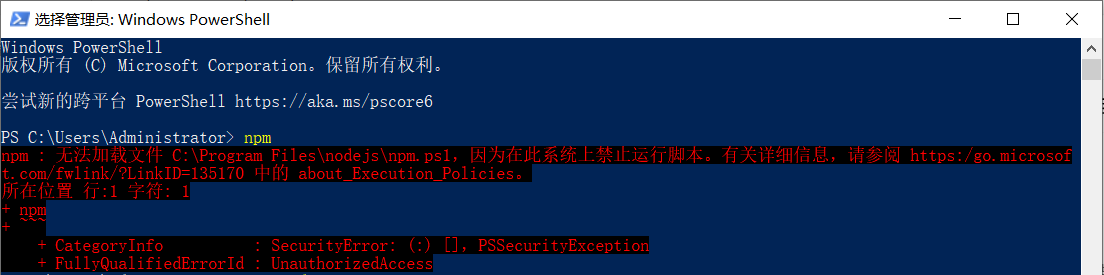
当你兴高采烈地在 Windows PowerShell 中敲下 npm install,却看到一行红色报错: npm : 无法加载文件 C:\Program Files\nodejs\npm.ps1,因为在此系统上禁止运行脚本。 别慌,这不是 Node.js 装坏了,而是 Windows 在保护你。 12345678910111213Windows PowerShell版权所有 (C) Microsoft Corporation。保留所有权利。尝试新的跨平台 PowerShell https://aka.ms/pscore6PS C:\Users\Administrator> npmnpm : 无法加载文件 C:\Program Files\nodejs\npm.ps1,因为在此系统上禁止运行脚本。有关详细信息,请参阅 https:/go.microsoft.com/fwlink/?LinkID=135170 中的 about_Execution_Policies。所在位置 行:1 字符: 1+ npm+ ~~~ + CategoryInfo :...
告别JDK版本混乱:JVMS让Windows下的Java开发如丝般顺滑
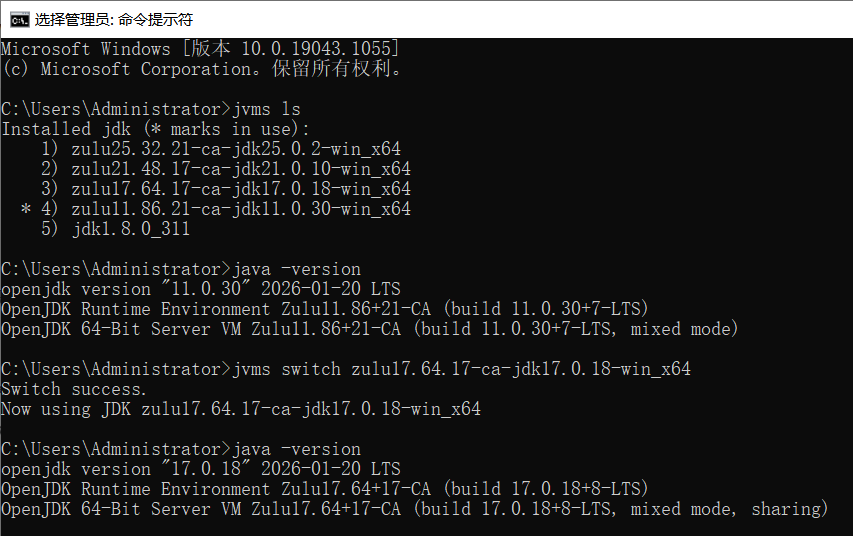
你是否也曾经历过这样的抓狂时刻:接手一个老项目,需要 JDK 8;自己正在开发的新项目,必须用 JDK 17;突然领导又扔过来一个祖传项目,非 JDK 11 不可。每次切换版本,你都得去修改 JAVA_HOME,折腾 Path 环境变量,重启终端,甚至还要祈祷不要报 Unsupported major.minor version 错误。 如果你是一名 Windows 开发者,这些烦恼将随着一个名为 JVMS 的工具烟消云散。 JVMS:简化Windows平台上的JDK版本管理JVMS(全称:JDK Version Manager)是一款专为 Windows 平台设计的开源 JDK 版本管理工具,旨在让开发者能够轻松地在多个 JDK 版本之间无缝切换。该工具由 Go 语言编写,无需依赖任何额外的运行环境,下载后即可直接使用。 传统方法的局限性过去,在 Windows 系统上切换不同的 JDK 版本通常需要手动修改系统的 JAVA_HOME 环境变量,并且还需要调整 PATH 配置以指向正确的 JDK 路径。这种方法不仅步骤繁琐,还容易因残留的 Path 设置导致冲突。此外,每次切换...
Introduction to JSON Web Tokens (JWT)
In today’s digital world, secure authentication and data exchange are critical for web applications. JSON Web Tokens (JWT) have emerged as a popular solution for securely transmitting information between parties as a compact, self-contained JSON object. Whether you’re a developer building APIs or working on user authentication, understanding JWTs is essential. This article will introduce you to JSON Web Tokens, explain how they work, and provide practical examples to help you get started. Wha...
Integrating DeepSeek into VSCode: A Game-Changer for Developers
Visual Studio Code, affectionately known as VSCode, is a free, open-source code editor developed by Microsoft. Since its debut in 2015, it has skyrocketed in popularity within the developer community and is now a staple across Windows, macOS, and Linux operating systems. One of its most compelling features is the vast extension marketplace. Here, developers can enhance their coding experience with a plethora of extensions, whether it’s language support, code formatting tools, version control ...
How To Run DeepSeek Locally On Windows?
Here is a step-by-step guide on how to run DeepSeek locally on Windows: Install Ollama Visit the Ollama Website: Open your web browser and go to Ollama’s official website. Download the Windows Installer: On the Ollama download page, click the “Download for Windows” button. Save the file to your computer, usually in the downloads folder. Run the Installer: Locate the downloaded file (e.g., OllamaSetup.exe) and double-click to run it. Follow the on-screen instructions to complete the installati...
Ollama Page Assist
Page Assist is an open-source browser extension that provides an intuitive interface for interacting with local AI models. It allows users to chat and engage with local AI models directly on any webpage. Key Features Sidebar Interaction: Open a sidebar on any webpage to chat with your local AI model and get intelligent assistance related to the page content. Web UI: A ChatGPT-like interface for more comprehensive conversations with the AI model. Web Content Interaction: Chat directly wi...
Ollama Open WebUI
Open WebUI is a user-friendly AI interface that supports Ollama, OpenAI API, and more. It’s a powerful AI deployment solution that works with multiple language model runners (like Ollama and OpenAI-compatible APIs) and includes a built-in inference engine for Retrieval-Augmented Generation (RAG). With Open WebUI, you can customize the OpenAI API URL to connect to services like LMStudio, GroqCloud, Mistral, and OpenRouter. Administrators can create detailed user roles and permissions, en...